
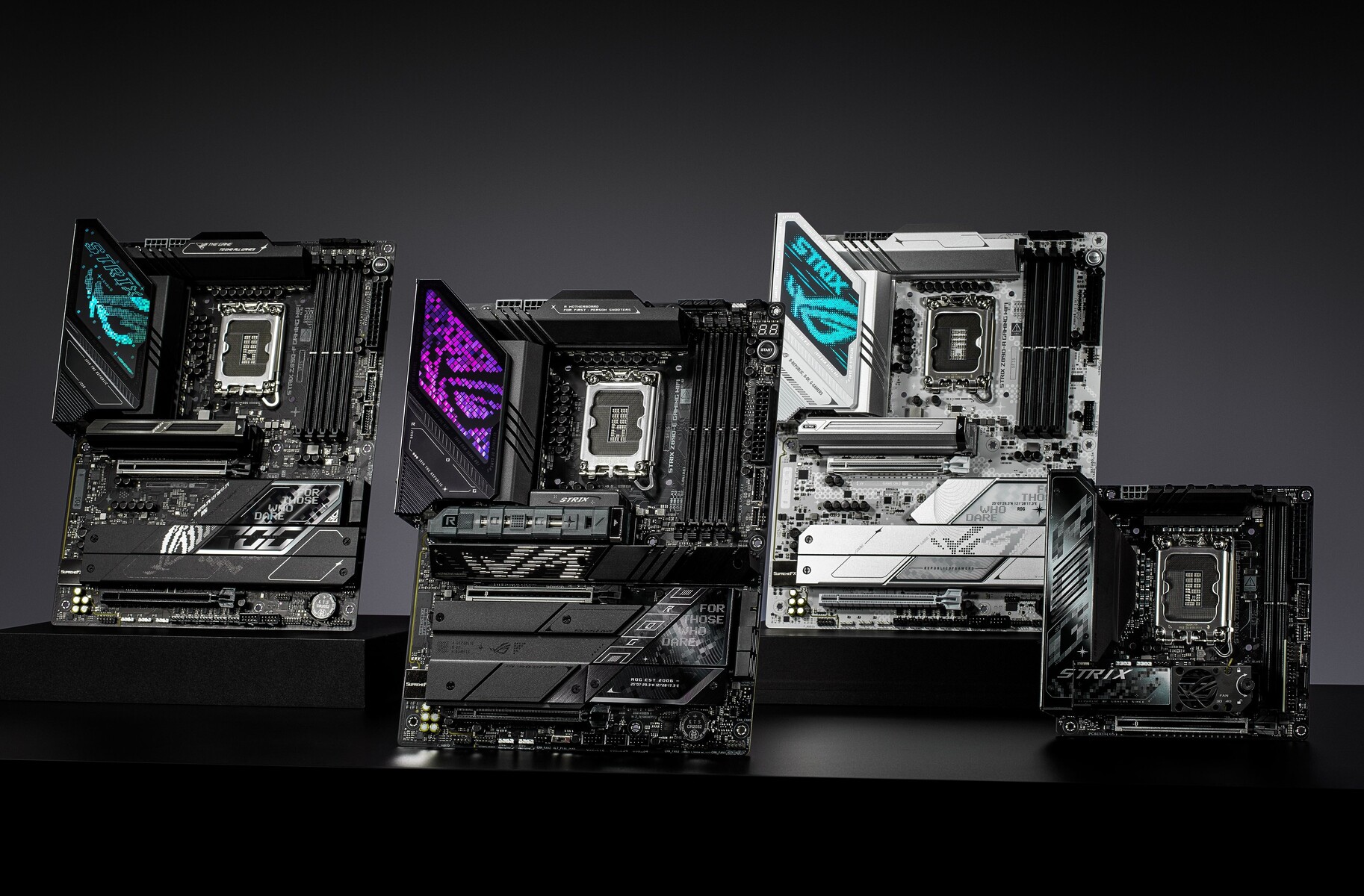
motherboard
Introduction
Have you ever needed to know what motherboard is inside your computer? Maybe you want to upgrade your RAM, install a new graphics card, or sell your PC. Knowing your motherboard model is super important for all these tasks. The good news is that finding this information is much easier than you might think. You don’t need to open your computer case or be a tech expert. In fact, there are several quick ways to check your motherboard model using tools you already have on your computer.
I remember the first time I needed to upgrade my gaming PC. I had no clue what motherboard I owned. I felt lost and confused. After some research, I discovered these simple methods, and now I want to share them with you. Whether you use Windows, Mac, or Linux, this guide will show you exactly how to check your motherboard model. We’ll cover command line tricks, free software tools, and even physical inspection methods. By the end of this article, you’ll be able to identify your motherboard in less than five minutes. Let’s dive in and solve this mystery together!
Why Knowing Your Motherboard Model Matters
Your motherboard is the backbone of your entire computer system. It connects every single component together. When you know your motherboard model, you unlock a world of possibilities for your PC. First, it helps with hardware upgrades. If you want more RAM, you need to know what type your motherboard supports. The same goes for processors. Not every CPU fits every motherboard. You could waste money buying incompatible parts without this key information.
Second, knowing your motherboard model helps with driver updates. Manufacturers release new drivers to fix bugs and improve performance. You cannot download the right drivers if you don’t know your exact model. This can lead to crashes, slow performance, and security issues. Third, troubleshooting becomes much easier. When something goes wrong, tech support will ask for your motherboard details. Having this information ready saves time and frustration.
I learned this lesson the hard way when I bought a fancy new graphics card that did not fit my motherboard. That mistake cost me both money and time. Now I always check my motherboard model before buying any new parts. Trust me, spending two minutes to check your motherboard now can save you hours of headaches later. It also helps when you want to sell your computer. Buyers want to know what’s inside, and having this information builds trust.
Method 1: Using Windows Command Prompt
The fastest way to check your motherboard model in Windows is through the Command Prompt. This tool comes built into every Windows computer. You don’t need to download anything or spend money. The Command Prompt gives you accurate information in seconds. Let me walk you through this simple process step by step.
First, open the Command Prompt on your computer. You can do this by pressing the Windows key on your keyboard. Type “cmd” into the search box. You will see Command Prompt appear in the results. Click on it to open the black window. Some people prefer to run it as administrator, but for checking your motherboard, regular mode works just fine. Once the window opens, you will see a blinking cursor waiting for your command.
Now type this exact command: wmic baseboard get product, manufacturer, version, serialnumber Press enter on your keyboard. Wait just one second, and your screen will display your motherboard information. You will see the manufacturer name like Dell, HP, ASUS, or MSI. The product line shows your exact model number. The version tells you which revision you have. The serial number helps with warranty claims. This method works on Windows 7, 8, 10, and 11. It never fails and gives you clean, easy-to-read results. I use this method almost every day when helping friends with their computers.
Method 2: Checking Through Windows System Information
Windows has another built-in tool called System Information. Many people overlook this helpful feature, but it provides detailed hardware data including your motherboard model. This method is even easier than Command Prompt because it uses a visual interface. You do not have to type any commands or remember tricky text. Let me show you how to access this valuable tool.
Press the Windows key on your keyboard and the letter R at the same time. This opens the Run dialog box. It is a small window where you can type commands. In the box, type msinfo32 and press Enter. Wait a few seconds for the System Information window to load. This tool gathers all your system details, so it might take a moment. Once it opens, look on the left side. You will see “System Summary” already selected. This is the main page with all your basic information.
Now scan through the items on the right side. Look for “BaseBoard Manufacturer” and “BaseBoard Product.” These two lines tell you exactly who made your motherboard and what model it is. Sometimes Windows calls it “System Manufacturer” instead. Both mean the same thing for our purposes. The information appears in plain text, so you can write it down or take a screenshot. This method works great for beginners because everything is laid out clearly. No confusing codes or technical jargon to figure out. Just simple labels with your motherboard details right there.
Method 3: Using Free Third-Party Software Tools
Sometimes you want more than just the basic motherboard model. Maybe you need to know your BIOS version, chipset details, or temperature readings. Free third-party software tools can provide all this extra information and more. These programs are safe, reliable, and trusted by millions of users worldwide. Best of all, they cost nothing to download and use. Let me introduce you to my favorite tools for checking motherboard details.
CPU-Z is probably the most popular choice among tech enthusiasts. This tiny program has been around for years and provides incredibly detailed system information. Download it from the official website, install it in seconds, and open the program. Click on the “Mainboard” tab, and you will see everything about your motherboard. The manufacturer, model, chipset, BIOS version, and even graphics interface all appear here. Another great option is Speccy from the makers of CCleaner. Speccy presents your system information in a clean, organized way that anyone can understand. It even shows temperatures for different components.
HWiNFO is another excellent choice for power users. It gives you live monitoring data along with detailed specifications. The program can create complete reports about your system. This helps when you need to save your motherboard information for later reference. I keep CPU-Z on a USB drive at all times. When I work on someone else’s computer, I can quickly plug it in and get all the information I need. These tools make checking your motherboard model fun and informative.
Method 4: Physical Inspection of Your Motherboard
Sometimes software methods do not work. Your computer might not boot up, or you might have a very old system. In these cases, looking inside your computer case becomes necessary. Physical inspection sounds scary, but it is actually quite simple and safe if you follow basic precautions. You just need to open your computer case and look for the printed information on the motherboard itself.
Before you start, unplug your computer completely. Press the power button afterward to discharge any remaining electricity. This step keeps you safe from electrical shocks. Remove the side panel of your case. Most modern cases have thumbscrews you can turn by hand. Older cases might need a screwdriver. Once inside, look at the motherboard surface. You will see lots of text printed in white or silver lettering. Manufacturers print their name and the model number somewhere visible.
Common places to check include between the PCI Express slots, near the RAM slots, or around the CPU socket area. The model number usually looks something like “Z490-A PRO” or “B450 TOMAHAWK.” Write this number down carefully. You might also see a sticker with a barcode. This sticker often contains the exact model and serial number. Take a photo with your phone for reference. Remember to touch the metal case periodically to discharge static electricity. Static can damage computer parts, so this precaution matters. Physical inspection gives you 100% accurate information because you are looking directly at the hardware.
Method 5: Checking Your Motherbox Model in BIOS/UEFI
The BIOS or UEFI screen appears before Windows starts. This low-level software controls your motherboard at the most basic level. It always knows exactly what hardware is installed. Checking your motherboard model here guarantees accuracy because you are getting information straight from the source. Accessing BIOS requires timing and the right key presses, but the process works on every computer.
Restart your computer and watch the screen carefully during startup. You will see a message saying “Press DEL to enter Setup” or “Press F2 for BIOS.” The exact key varies by manufacturer. Common keys include Delete, F2, F10, F12, and Escape. Press this key repeatedly as soon as the computer starts. If you miss it, just restart and try again. Once inside the BIOS, look around for system information. Modern UEFI interfaces often show the motherboard model right on the main screen.
Older BIOS versions might hide this information under a “System Information” or “Main” tab. Navigate using your keyboard arrow keys. You cannot use a mouse in traditional BIOS. Write down the model number you see. To exit, find the “Exit” tab and choose “Exit Discarding Changes.” This ensures you do not accidentally change any settings. The BIOS method works even when Windows fails to start. I have used this trick many times to identify motherboards on computers that would not boot properly. It never fails to provide accurate information.
Method 6: Using PowerShell for Detailed Information
PowerShell is like Command Prompt on steroids. It comes with every modern Windows computer and offers even more powerful commands. While Command Prompt gives you basic motherboard information, PowerShell can provide additional details with different commands. Learning this method gives you another tool in your troubleshooting toolkit. The steps are simple and take less than a minute.
Open PowerShell by pressing the Windows key and typing “PowerShell.” Click on Windows PowerShell in the search results. You do not need administrator rights for this particular command. Once the blue window opens, type this command: Get-WmiObject Win32_BaseBoard | Format-List Product, Manufacturer, SerialNumber, Version Press Enter and watch the magic happen. PowerShell returns your motherboard information in an easy-to-read list format.
You can also try this alternative command: Get-CimInstance Win32_BaseBoard | Select-Object Manufacturer, Product, SerialNumber, Version Both commands give you the same basic information. PowerShell appeals to people who want more control over their system. The tool also lets you save this information to a file for later use. Add ” | Out-File -FilePath C:\motherboard.txt” to your command, and PowerShell creates a text file with all your motherboard details. This method works great for IT professionals and curious home users alike.
Method 7: Checking Your Motherboard Model on Mac Computers
Mac computers use a different system than Windows PCs. Apple designs both the hardware and software, so checking your motherboard model works differently. Mac users often call their motherboard the “logic board.” Finding this information helps with upgrades, repairs, and selling your Mac. Apple provides several easy ways to identify your logic board without opening your computer.
The simplest method uses the “About This Mac” feature. Click the Apple logo in the top-left corner of your screen. Choose “About This Mac” from the dropdown menu. A window appears showing your macOS version and basic hardware info. Click the “System Report” button at the bottom. This opens a detailed system profiler. Look in the left sidebar under “Hardware” for “Hardware Overview.” Your model identifier appears here, like “MacBookPro15,1.”
For the exact logic board number, you need a different approach. Open Terminal from your Utilities folder. Type this command: system_profiler SPHardwareDataType | grep “Model Identifier” Press Enter. Terminal shows your Mac’s model identifier. To get the actual logic board part number, type: ioreg -l | grep “board-id” This returns a longer code that Apple uses for replacement parts. If you need the specific motherboard model for ordering repairs, use Apple’s support website. Enter your serial number, and Apple tells you exactly which logic board your Mac uses. This method guarantees you get the right part for your specific Mac model.
Understanding Motherboard Model Numbers and What They Mean
Motherboard model numbers look like random letters and numbers at first glance. Once you understand how manufacturers name their products, these codes reveal important information. Learning to read model numbers helps you compare motherboards and understand their capabilities. Each manufacturer uses their own system, but common patterns exist across brands.
ASUS motherboards typically start with letters indicating the chipset. For example, “ROG STRIX Z790-E” tells you this is a Republic of Gamers board with the Intel Z790 chipset. The “E” usually indicates the premium version. MSI uses similar patterns like “MPG B550 GAMING CARBON WIFI.” This tells you the chipset is B550, and the board includes built-in WiFi. Gigabyte often includes socket type in their model names like “B450 AORUS PRO WIFI” for AMD boards.
The chipset letters tell you what features to expect. Z-series chipsets allow overclocking on Intel systems. B-series offer good mid-range features. H-series provide basic functionality. For AMD, X-series chipsets offer the most features, while B-series provide great value. Numbers following the chipset indicate the generation. Higher numbers usually mean newer technology. Understanding these codes helps you make informed decisions when upgrading or building computers. You will know exactly what your current motherboard supports without looking up every detail online.
Common Problems When Checking Motherboard Models and Solutions
Sometimes checking your motherboard model does not go smoothly. You might run into issues that prevent you from getting the information you need. Knowing these common problems and their solutions saves time and frustration. I have encountered most of these issues myself and found reliable ways around them.
One frequent problem happens when using Command Prompt. Some users type the command incorrectly and get error messages. Double-check your spelling and spacing. The command must be exact. Another issue occurs on pre-built computers from Dell, HP, or Lenovo. These companies sometimes use custom motherboards with generic names. Your command might return “Product: 0XXXXX” instead of a real model number. In this case, use the physical inspection method or check the manufacturer’s website with your computer’s serial number.
Some older computers do not support the wmic command. Windows might say the command is not recognized. Try the System Information method instead. If that fails, use a third-party tool like CPU-Z. These tools work on almost any Windows version. For Mac users, older models might not show detailed logic board information in System Report. Use the Terminal commands mentioned earlier for more complete data. When all software methods fail, physical inspection always works. Take your time, look carefully, and you will find the model number printed somewhere on the board.
How to Use Your Motherboard Model Information
Now that you know how to check your motherboard model, what do you do with this information? Your motherboard model opens doors to many useful tasks. Let me share practical ways to put this knowledge to work. First, visit the manufacturer’s support website. Enter your model number to find the latest drivers, BIOS updates, and manuals. Keeping these updated improves performance and security.
Second, use your model number to check compatibility before buying new parts. RAM manufacturers have compatibility lists on their websites. Enter your motherboard model to see which memory kits work best. The same applies to CPUs, coolers, and storage devices. This simple step prevents expensive mistakes. I always check these lists before ordering anything.
Third, join online forums and communities for your specific motherboard. Other users share tips, troubleshooting advice, and overclocking settings. You learn from their experiences and avoid common pitfalls. Fourth, keep your motherboard model handy for tech support calls. When you call for help, having this information ready speeds up the process dramatically. Support technicians appreciate customers who come prepared. Finally, document your motherboard model along with other system specs. Store this information safely for future reference. You will thank yourself later when you need it again.
Frequently Asked Questions
Can I check my motherboard model without turning on my computer?
Yes, you can physically inspect the motherboard by opening your computer case. Look for printed text on the board surface between expansion slots, near RAM slots, or around the CPU area. The model number is usually clearly visible. Remember to unplug your computer and discharge static electricity before opening the case.
Why does my Command Prompt show “BaseBoard Information” as unavailable?
This happens on some pre-built computers like Dell, HP, or Lenovo systems. Manufacturers sometimes customize the BIOS to hide this information. Try using System Information (msinfo32) or download a free tool like CPU-Z. Physical inspection also works when software methods fail.
Do I need to install software to check my motherboard?
No, you do not need any additional software. Windows has built-in tools like Command Prompt and System Information that show your motherboard model. Mac users can use System Report or Terminal commands. Third-party tools provide extra details but are optional.
How often should I check my motherboard model?
You only need to check your motherboard model once and write it down. Save this information for future reference. Check again only if you replace your motherboard or buy a new computer. Keep your model number in a safe place like a notes file or written on the computer case.
Is it safe to use third-party software to check my motherboard?
Yes, popular tools like CPU-Z, Speccy, and HWiNFO are completely safe. Millions of users trust these programs. Always download from official websites to avoid fake versions. These tools only read information and do not change any settings on your computer.
Can I find my motherboard model in Windows Settings?
Windows Settings does not directly show motherboard information. However, you can access it through related tools. Type “System Information” in the Windows search bar to open the detailed system tool. This shows your motherboard manufacturer and model alongside other system details.
Conclusion
Knowing how to check your motherboard model gives you power over your computer. You no longer have to guess what parts you need or wonder about compatibility. The methods we covered work for every situation. Whether you prefer typing commands, using visual tools, or looking inside your case, you now have the knowledge to find this crucial information quickly.
About the Author
